

Step 1: Create an Album and Add a Memory
- Launch the MemoriaR app and tap the "+" button on the Home screen.
- Enter a name for your album and confirm.
- Open the album you made in step 2, then tap "+" again to add a memory.
- Select a video from your library.

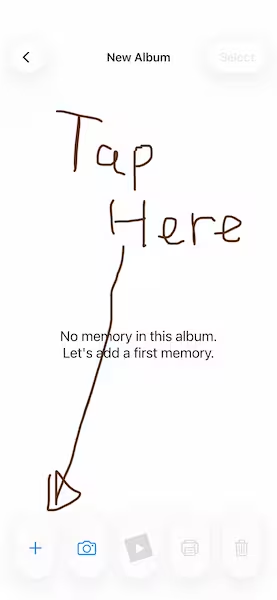
Step 2: Print Your Memory
Printing is what makes the AR magic possible — MemoriaR recognizes your physical print to trigger the video.
- Tap on the memory you added to open the Memory screen.
- Tap the Print button and follow the on-screen prompts.
Make sure you have a color printer available, or use a local print service.

Step 3: Watch It Come to Life
- Back on the Album screen, tap the Play button to start your AR session.
- Hold your iPhone/iPad camera over the printed photo in good lighting.
- MemoriaR will recognize the image — and your video will appear right on top of the photo.
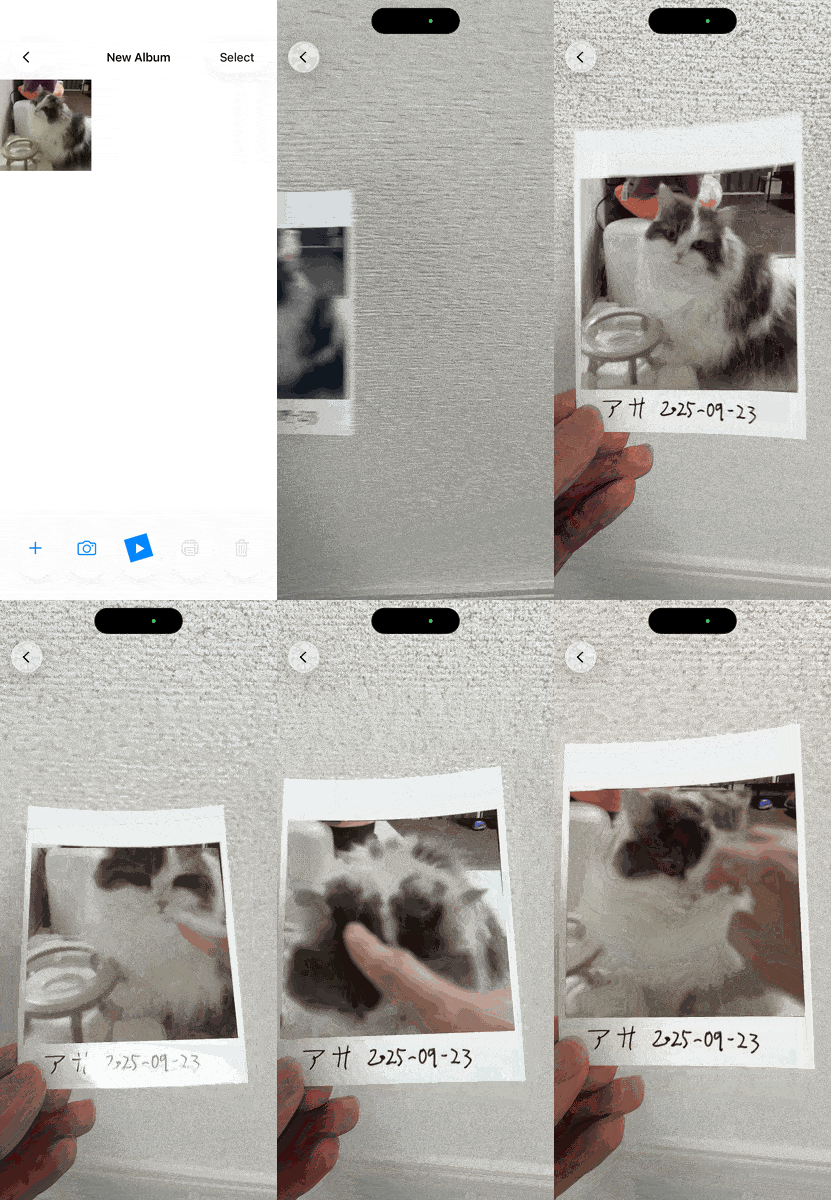
The actual experience is much sharper.
Tips for the Best Experience
- Lighting matters — scan in a well-lit environment for faster recognition.
Your memories deserve more than a screen. Enjoy MemoriaR.